Setting Up Minimax M2.5
Setting Up Minimax M2.5 in VSCode(GUI) and In TUI: A Complete Guide

On this page
- Introduction
- Understanding Your Options
- What Are Inference Providers?
- Option 1: Kilo Code (Recommended)
- Why Kilo Code?
- Step-by-Step Setup
- Step 1: Install the Extension
- Step 2: Create an Account
- Step 3: Access Minimax M2.5
- Option 2: Cline
- Why Cline?
- Step-by-Step Setup
- Step 1: Install Cline
- Option 3: OpenCode (CLI/TUI)
- Why OpenCode?
- Step-by-Step Setup
- Getting Free Access
- Current Free Options
- Tips for Free Access
- Recommended Starting Point
- Summary
Introduction
Getting started with Minimax M2.5 in VSCode is straightforward when you know your options. This guide walks you through setting up inference providers that support this powerful model, with a focus on free or low-cost options for developers on a budget.
Minimax M2.5 delivers exceptional coding performance — achieving 80.2% on SWE-Bench Verified, matching Claude Opus 4.6 at roughly one-thirtieth the cost. The challenge is accessing it affordably, which is where inference providers come in.
Understanding Your Options
What Are Inference Providers?
Inference providers are platforms that give you access to AI models via API. Instead of running models locally on your machine (which requires expensive hardware), you connect to these providers' servers. They handle the heavy computation, and you pay (or use free credits) for the service.
For Minimax M2.5, several providers offer access:
Kilo Code Trial periods available VS Code extension with built-in AI agent also has TUI
OpenCode Trial periods available CLI/TUI tool, not VS Code extension
Cline Limited free trials Check current offers
MiniMax Agent Completely free Browser-based, no VSCode integration
Option 1: Kilo Code (Recommended)
Kilo Code is a VS Code extension that combines an AI coding agent with access to multiple models, including Minimax M2.5. It's designed specifically for developers who want powerful AI assistance without the "frontier tax" of premium models.
Why Kilo Code?
- Built for VS Code — works directly in your editor
- Multiple models — access to M2.5, GLM-5, and others
- Agentic workflow — can autonomously handle multi-step tasks
- Free trials — often runs promotional free periods (M2.5 was free for a week at launch)
Step-by-Step Setup
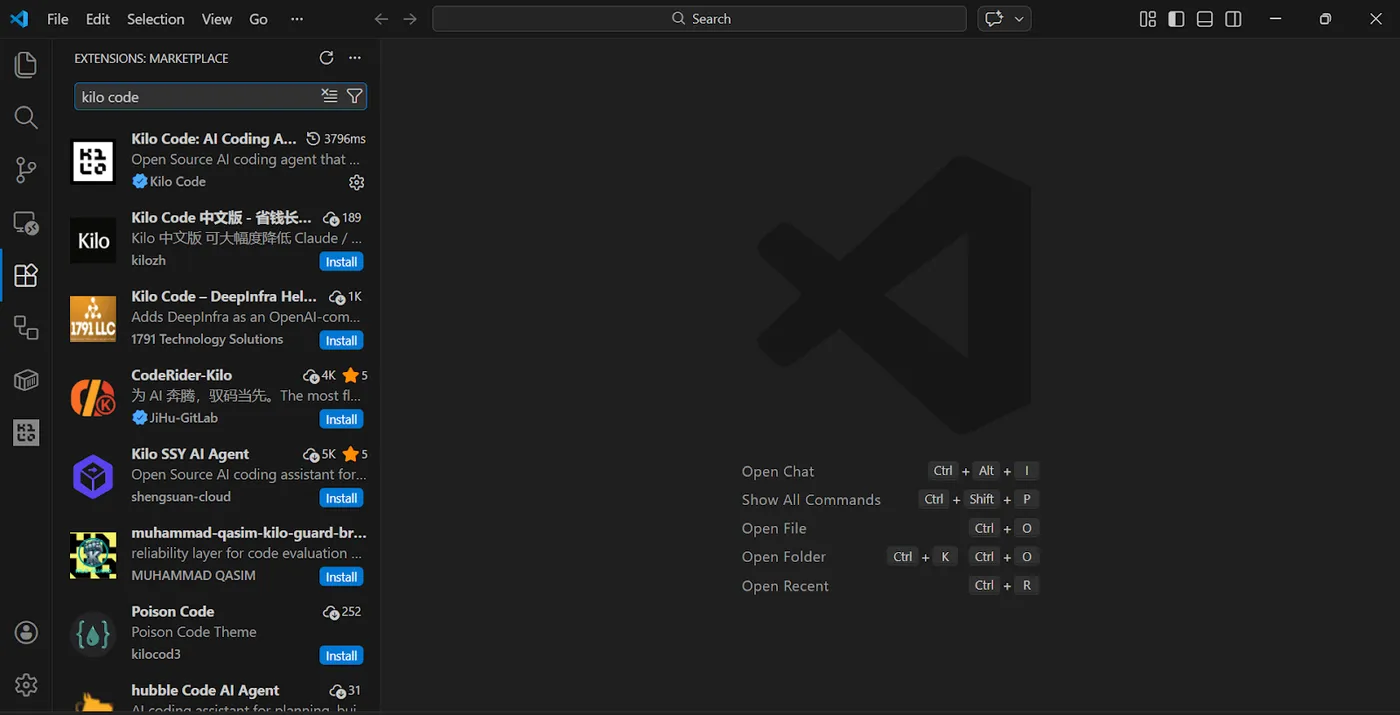
Step 1: Install the Extension
- Open VS Code
- Press Ctrl+Shift+X (Windows/Linux) or Cmd+Shift+X (macOS)
- Search for "Kilo Code"
- Click Install
- Reload VS Code when prompted
Alternatively, visit the VS Code Marketplace and click Install.
Step 2: Create an Account
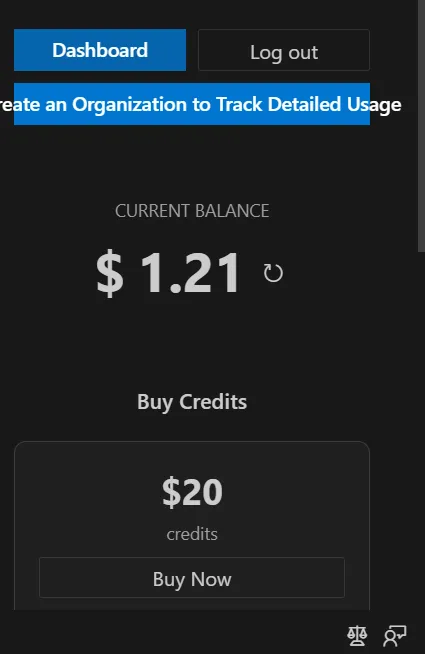
- After installation, you'll see the Kilo Code icon in the sidebar
- Click it and look for sign-up options
- Create an account using email or social login
Step 3: Access Minimax M2.5
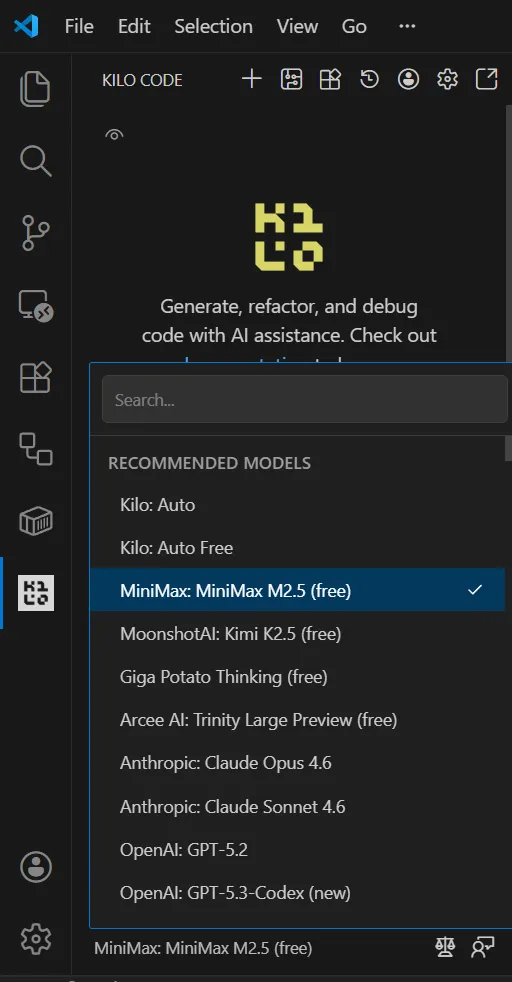
- Once logged in, navigate to settings within Kilo Code
- Look for model selection
- Select "Minimax-M2.5" from the available options
- If M2.5 isn't immediately available, check if there's an active
Option 2: Cline
Cline (formerly "Claude Dev") is another popular VS Code extension that supports multiple AI providers, including Minimax models.
Why Cline?
- Highly customizable — works with many API providers
- Autonomous agent — can execute multi-step tasks
- Active development — regular updates and improvements
Step-by-Step Setup
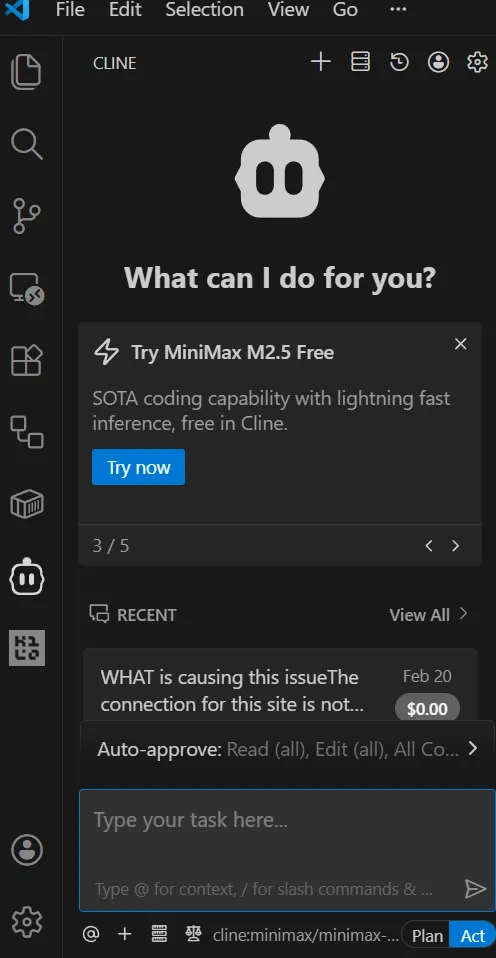
Step 1: Install Cline
- Open VS Code
- Press Ctrl+Shift+X to open Extensions
- Search for "Cline"
- Click Install
Option 3: OpenCode (CLI/TUI)
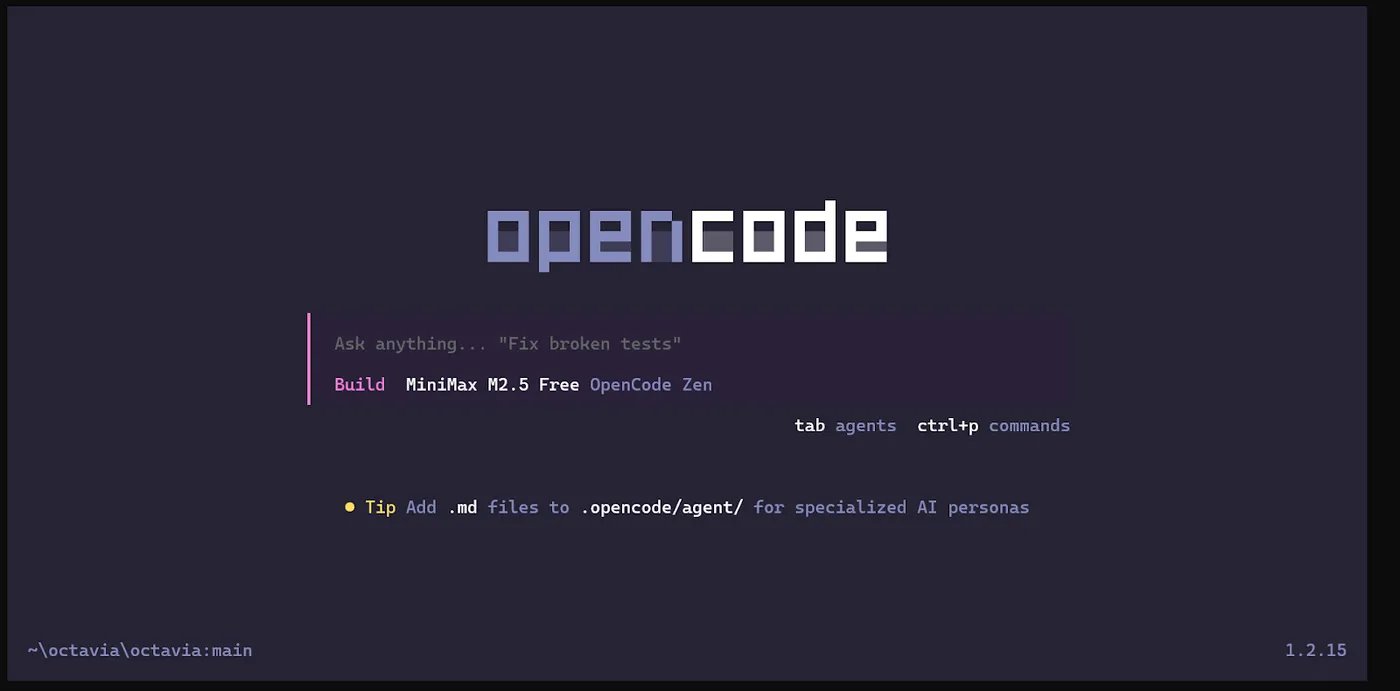
OpenCode is a terminal-based (TUI) AI coding assistant that offers free access to Minimax models with generous daily limits. It's not a VS Code extension — it runs in your terminal.
Why OpenCode?
- Free access — free tier for Minimax models
- Good limits — daily allowances for testing
- Fast — runs directly in terminal
- No VS Code needed — works in any terminal
Step-by-Step Setup
- Install OpenCode via npm: npm install -g opencode
- Run opencode in your terminal
- Create an account through the CLI interface
- Select Minimax-M2.5 as your model
- Start coding in your terminal
Getting Free Access
Current Free Options
Kilo Code: Check their website for promotional periods. The M2.5 launch included a full free week. They may offer similar promotions periodically.
OpenCode: Offers free tier access to Minimax models. Sign up and check your daily allowance.
MiniMax Agent: Completely free browser-based chat interface. No VS Code integration, but excellent for testing and learning. Visit minimax.io to try it.
Tips for Free Access
- Sign up early — free trials often have limited availability
- Check multiple providers — different platforms have different promotions
- Use MiniMax Agent — completely free for learning and testing
- Watch for promotions — follow Kilo Code and OpenCode on social media for free trial announcements
Recommended Starting Point
For most users, here's the recommended path:
- Start with Kilo Code — VS Code extension with free trial options
- Try MiniMax Agent (free, browser-based) to test the model first
- Use OpenCode via CLI if you prefer terminal-based workflow
- Experiment with the free tier before committing to paid options
Summary
Setting up Minimax M2.5 in VSCode is accessible thanks to multiple inference providers offering free or trial access. Start with Kilo Code or OpenCode for the full VS Code integration experience, or try MiniMax Agent for free browser-based access. The model delivers exceptional coding performance, making it well worth the setup effort.
Remember to check for current free trial offers, as these change frequently. The best approach is to sign up for multiple providers and take advantage of the free credits each offers. Kilo Code offers the full VS Code extension experience, while OpenCode provides a powerful CLI alternative.
Author: Jim Amuto | AI Engineering Apprentice at LUNARTECH.
Linkedin Author: https://www.linkedin.com/in/jim-amuto-2ba8ab39a/